 Hovercap
Picture‑in‑Picture that keeps the captions.
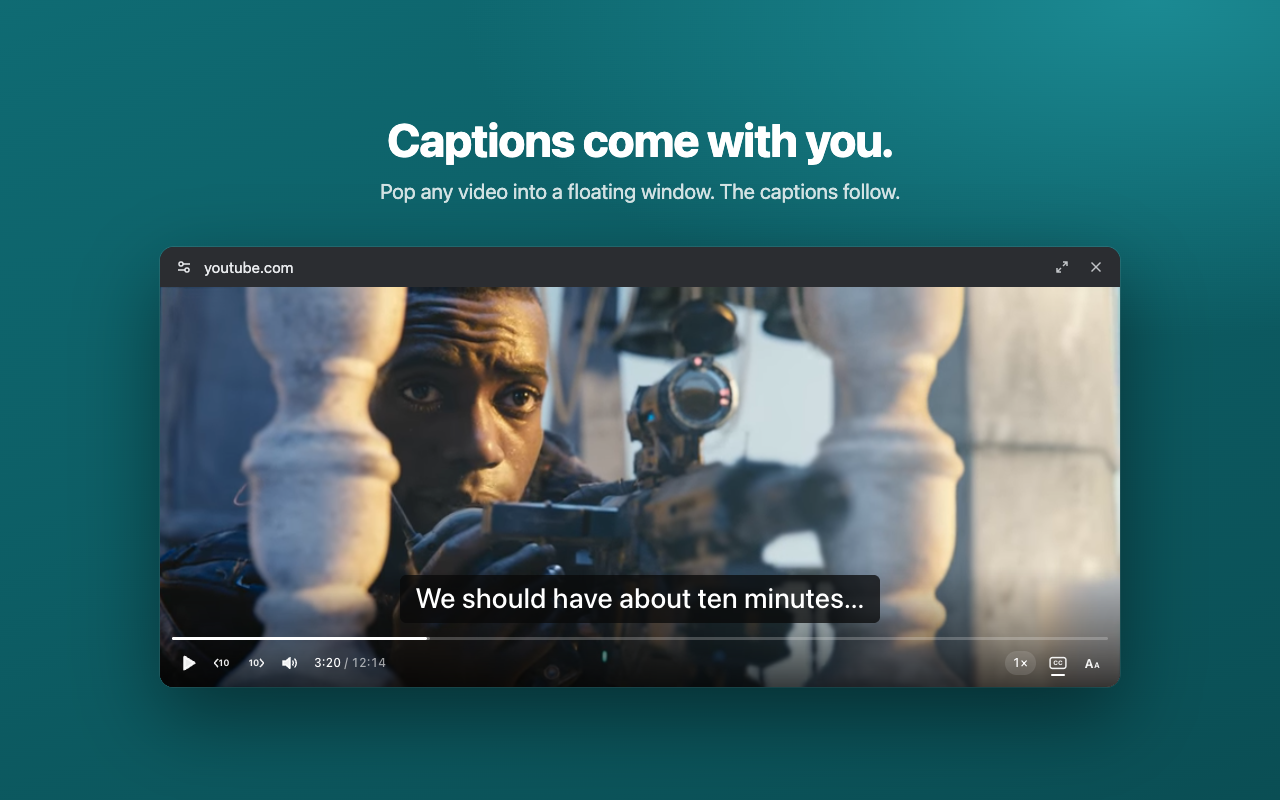
Chrome's floating video drops captions and gives you only play and pause. Hovercap pops any video into a floating window with its captions and the controls you'd expect from a real player.
Everything Chrome's floating video leaves out
Captions come with you
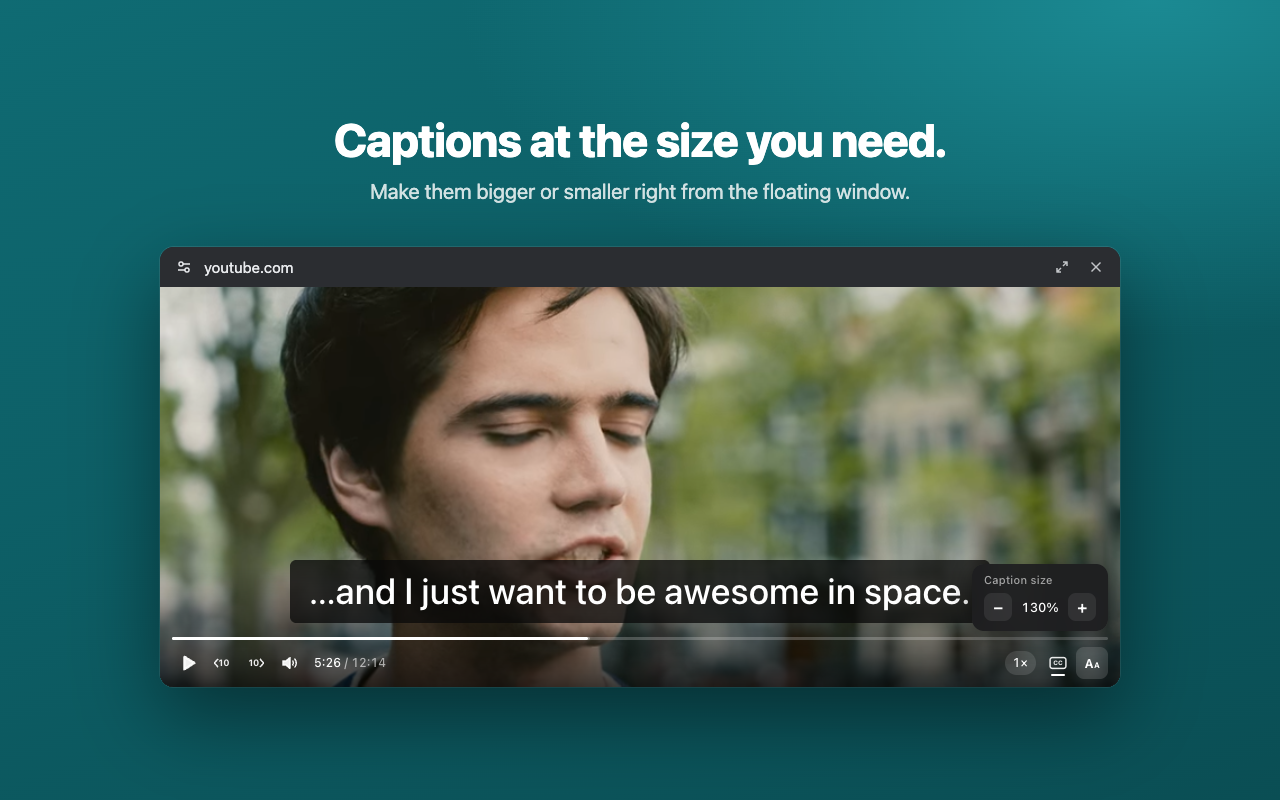
The captions the site is showing appear in the floating window, at the size you choose. On YouTube you can switch them on from the window itself.
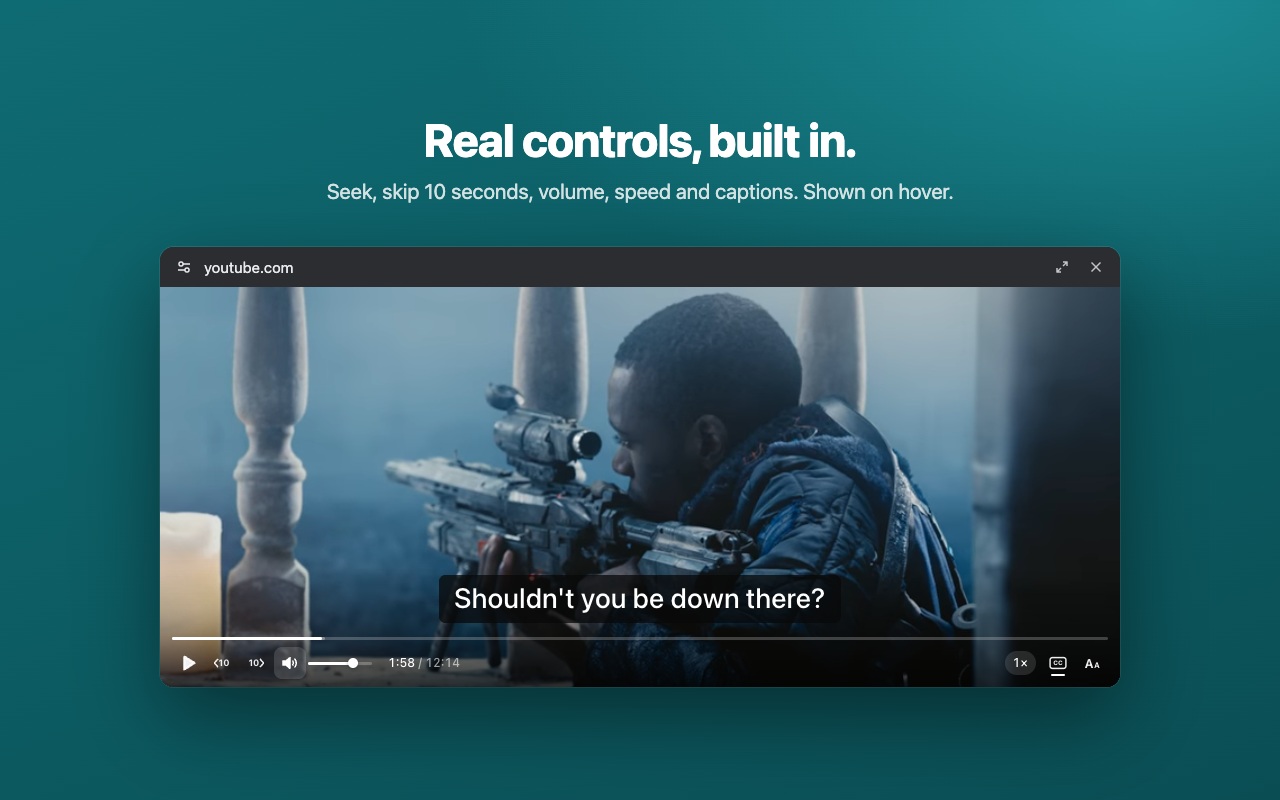
Real controls
A seek bar with time preview, 10-second skip, volume, playback speed and keyboard shortcuts. They appear on hover and stay out of the way.
Google Meet call controls
On a Meet call, the floating window shows the main speaker with buttons to mute, turn your camera off, raise your hand and leave.
Private by design
Hovercap only runs on the tab you click it on. No servers, no analytics, no tracking, and no access to all your websites.
See it in action
How to use it
- Open any page with a video.
- Click the Hovercap button in your toolbar, or press Alt+P.
- Click it again to close the window and put the video back.
Keyboard shortcuts
| Space K | Play or pause |
| ← → | Back or forward 5 seconds |
| J L | Back or forward 10 seconds |
| ↑ ↓ | Volume |
| M | Mute |
| C | Captions on or off |
| + − | Caption size |
| < > | Playback speed |
Your viewing stays yours
Hovercap reads the video and captions inside your browser and sends nothing anywhere. It saves only two settings: whether captions are on and how big they are. Read the privacy policy.